- Website scans: check site health, search presence, AI visibility, advertising presence, and storefront tracking.
- Research: explore keywords, competitors, public ads, and how AI assistants recommend your brand.
- Connected data: read supported information from Shopify, Google Analytics, Search Console, Tag Manager, Meta Ads, Google Ads, Klaviyo, and Gorgias.
- Drafts and fixes: prepare fix instructions, supported Shopify theme previews, and evidence-backed content drafts.
- Follow-ups: save findings, review progress, and check verification evidence.
Setup
Connect your AI assistant
In an AI application that supports remote MCP servers:- Open its MCP or connector settings.
-
Add a server named Superworker with this URL:
- Follow the authentication flow to connect your Superworker account.
-
Return to your assistant and check the connection:
Run your first scan
[yourstore.com] with your website address.
You can also specify a focus, such as tracking, SEO, site health, or AI visibility. Your assistant can guide you through connecting additional accounts when a question requires private data.
Claude
Connect Superworker in Claude using a custom connector. For client requirements and connector settings, see Claude’s official connector documentation.1. Add the custom connector
Open Customize, select Connectors, then choose Add custom connector. Enter these settings:- Name:
Superworker - Remote MCP server URL: paste the server URL below.
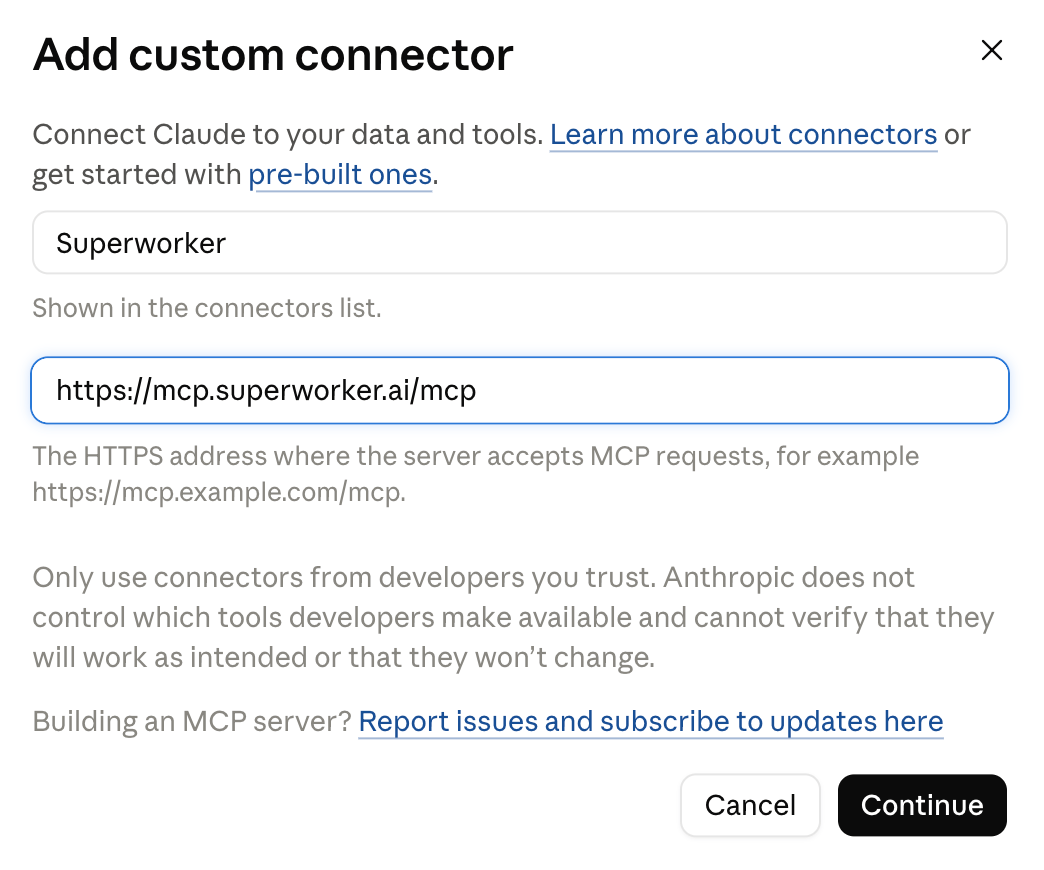
Enter Superworker and the MCP server URL, then select Continue.
2. Authenticate your account
A Superworker page will open in your browser. This is where you connect your Superworker account to your AI application.- New to Superworker? Select Create account and follow the instructions to register.
- Already have an account? Sign in with the email address and password you use for Superworker. Use the account where your brands and scans are saved.
Codex
Connect Superworker in the Codex app, then authenticate with your Superworker account. For MCP configuration and authentication options, see OpenAI’s official MCP documentation.1. Add the MCP server
Open Plugins and select the MCPs tab. Open the Add menu, then choose Add MCP server.
Open Plugins → MCPs → Add → Add MCP server.
- Name:
superworker - Type: select Streamable HTTP.
- URL: paste the server URL below.
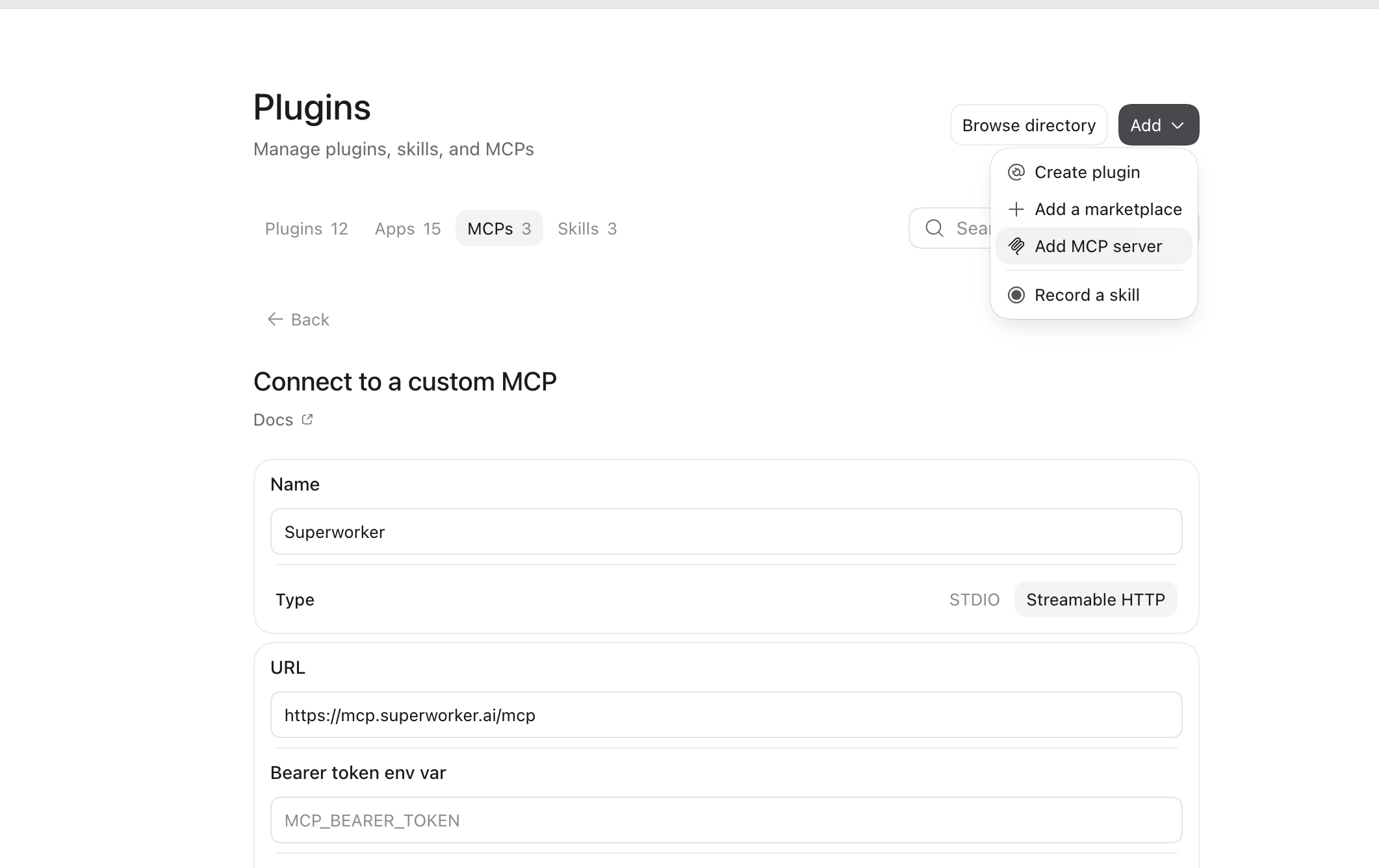
Check that Streamable HTTP is selected and the server URL is correct.
2. Authenticate your account
A Superworker page will open in your browser. This is where you connect your Superworker account to your AI application.- New to Superworker? Select Create account and follow the instructions to register.
- Already have an account? Sign in with the email address and password you use for Superworker. Use the account where your brands and scans are saved.
Connected business data
Connecting Claude or Codex gives your assistant access to Superworker. Connecting a business account gives Superworker access to the supported private data needed for a question. These are separate connections. You can start with your website address and public scans. When a task needs private data:- Ask your assistant which workspace and brand are active.
- Ask it which supported connections that brand already has.
- Tell it which business question you want to answer, then follow its connection flow for any missing account.
- Return to the conversation and ask it to verify the connection before continuing.
Workflow examples
Each example starts with a goal and a prompt you can adapt. Ask your assistant to explain which saved evidence it can use and whether the task needs a fresh scan or an additional connection.
A prepared plan, an applied change, and a verified result are separate stages. Review any requested approval before work that writes or spends proceeds.
Example prompts
Understand a finding
Prepare work for review
Review progress
FAQ
Do I need to install or host a local server?
Do I need to install or host a local server?
Do I need to connect all my business accounts before I start?
Do I need to connect all my business accounts before I start?
No. You can start by adding your brand with its website address and running public website checks. Connect additional accounts when your question needs private data, such as analytics, advertising performance, or store information. Your assistant can check which supported connections are available for your brand and guide you through authorization.
Can I work with more than one workspace or brand?
Can I work with more than one workspace or brand?
Yes, if your Superworker account has access to them. Ask your assistant to list your available workspaces and brands, then tell it which workspace and brand you want to use. Workspace selection is specific to each AI client, so switching in Claude does not switch the workspace in Codex or the Superworker web app. Available actions depend on your role and the brand’s connected accounts.
Will a proposed fix change my live website?
Will a proposed fix change my live website?
Preparing a fix does not publish it. Superworker can provide fix instructions and, for supported Shopify findings, prepare a theme preview. Review the proposed change through its browser review link and approve it before it can be applied. A prepared preview, an applied change, and a verified result are separate stages; ask your assistant for the current status and verification evidence.
What should I check if the connection works but data is missing?
What should I check if the connection works but data is missing?
Ask your assistant to check your Superworker connection and show the active workspace, available brands, and connection status for the brand you want to use. If you have no brand yet, ask it to guide you through adding your website. If a required account is disconnected or its authorization has expired, complete the connection flow and ask your assistant to verify it. For connection errors, confirm the server URL, check that the MCP server is enabled in your AI app, and complete sign-in.